Installing Mods | The Mods Folder
Within the Content folder inside the game directory (for example Hades):
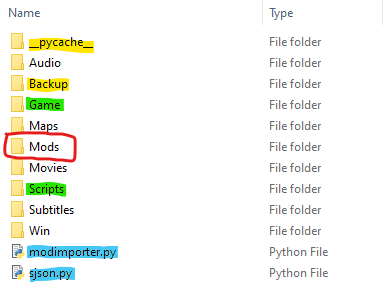
The Content folder may contain other files and folders depending on the game, but pictured here are always the relevant ones.
- Green: Folders typically containing files mods can edit
- Blue: Mod Importer and modules it uses (not part of the base game)
- Yellow: Folders created/managed exclusively by the Mod Importer (not part of the base game)
The Mods folder is not part of the base game and needs to be created by the user. This folder is where the Mod Importer will look to find mods.
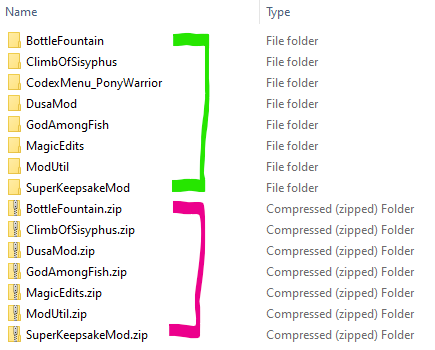
Each mod in the Mods folder is itself a folder, mods should name this folder similar to the full name of the mod.
When a mod is distributed it should be zipped containing this folder.
Users can place that .zip in the Mods folder (marked purple) and extract it (resulting in the folders marked in green).
(for installing the Mod Importer see The Mod Importer)
When ran, modimporter.py will scan the Mods folder for valid mods, and will implement the changes necessary to install those mods automatically.
It can be ran as many times as you want without messing anything up so it's a good idea to run it again every time the game or any mods update.
To uninstall mods simply remove them from the Mods folder and run the Mod Importer again.
The Mod Importer creates a Backup folder which contains the original files before it edited them.
If you delete the Backup folder you should verify the integrity of game files / re-install the game