Enabling Azure AD authentication on Azure SQL Managed Instance and adding AAD server logins as Sysadmins for Privileged users
Azure Active Directory authentication is a mechanism of connecting to Azure SQL Managed Instance by using identities in Azure Active Directory (Azure AD). With Azure AD authentication, you can centrally manage the identities of database users and other Microsoft services in one central location.
All the privileged users in Azure SQL Managed instance need to have AAD server logins on the Managed SQL Instance. Preferable to create an AAD Group as a sysadmin on the SQL Server.
In order to enable AAD authentication for managed SQL Instance, you need to Set an AAD admin on the Azure SQL Managed Instance properties.
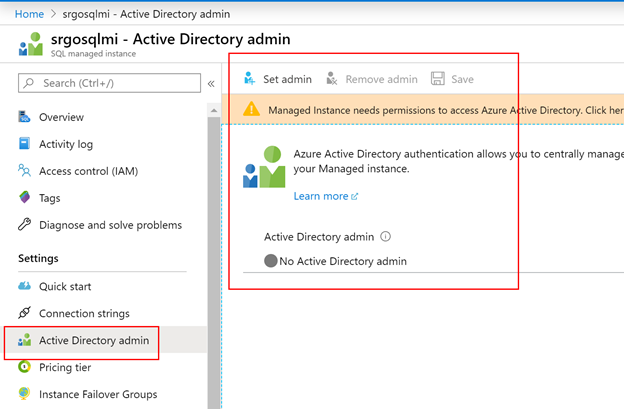
This can be done in the portal or over powershell script
# Gives Azure Active Directory read permission to a Service Principal representing the managed instance.
# Can be executed only by a "Company Administrator", "Global Administrator", or "Privileged Role Administrator" type of user.

$aadTenant = "<YourTenantId>" # Enter your tenant ID
$managedInstanceName = "MyManagedInstance"

# Get Azure AD role "Directory Users" and create if it doesn't exist
$roleName = "Directory Readers"
$role = Get-AzureADDirectoryRole | Where-Object {$_.displayName -eq $roleName}
if ($role -eq $null) {
    # Instantiate an instance of the role template
    $roleTemplate = Get-AzureADDirectoryRoleTemplate | Where-Object {$_.displayName -eq $roleName}
    Enable-AzureADDirectoryRole -RoleTemplateId $roleTemplate.ObjectId
    $role = Get-AzureADDirectoryRole | Where-Object {$_.displayName -eq $roleName}
}

# Get service principal for managed instance
$roleMember = Get-AzureADServicePrincipal -SearchString $managedInstanceName
$roleMember.Count
if ($roleMember -eq $null) {
    Write-Output "Error: No Service Principals with name '$    ($managedInstanceName)', make sure that managedInstanceName parameter was     entered correctly."
    exit
}
if (-not ($roleMember.Count -eq 1)) {
    Write-Output "Error: More than one service principal with name pattern '$    ($managedInstanceName)'"
    Write-Output "Dumping selected service principals...."
    $roleMember
    exit
}

# Check if service principal is already member of readers role
$allDirReaders = Get-AzureADDirectoryRoleMember -ObjectId $role.ObjectId
$selDirReader = $allDirReaders | where{$_.ObjectId -match     $roleMember.ObjectId}

if ($selDirReader -eq $null) {
    # Add principal to readers role
    Write-Output "Adding service principal '$($managedInstanceName)' to     'Directory Readers' role'..."
    Add-AzureADDirectoryRoleMember -ObjectId $role.ObjectId -RefObjectId     $roleMember.ObjectId
    Write-Output "'$($managedInstanceName)' service principal added to     'Directory Readers' role'..."

    #Write-Output "Dumping service principal '$($managedInstanceName)':"
    #$allDirReaders = Get-AzureADDirectoryRoleMember -ObjectId $role.ObjectId
    #$allDirReaders | where{$_.ObjectId -match $roleMember.ObjectId}
}
else {
    Write-Output "Service principal '$($managedInstanceName)' is already     member of 'Directory Readers' role'."
}
Once you set the admin, then you will be able to add AAD accounts as server logins and then added to the corresponding server role accordingly. T-SQL Script to create AAD server logins and granting sysadmin
USE master
GO
CREATE LOGIN [abc@microsoft.com] FROM EXTERNAL PROVIDER
GO
ALTER SERVER ROLE sysadmin ADD MEMBER [abc@microsoft.com]
GO
In this way, you can guarantee that all your sysadmins are connecting from Azure AD accounts only. Also you can set Azure AD conditional access on these accounts that they can be accessed only from certain regions or devices etc.
For Securing location and time, the best practice is to enable Privileged Identity management to log onto Secured Jump start VMs within the same VNET as the SQL Managed instance and then connecting to the managed instance over these secure VMs to lock down the admin access. Link : https://docs.microsoft.com/en-us/azure/active-directory/privileged-identity-management/pim-getting-started